
Rooms - Two-Way Audio & Video
• Steve Seguin • basic • rooms audio video chat
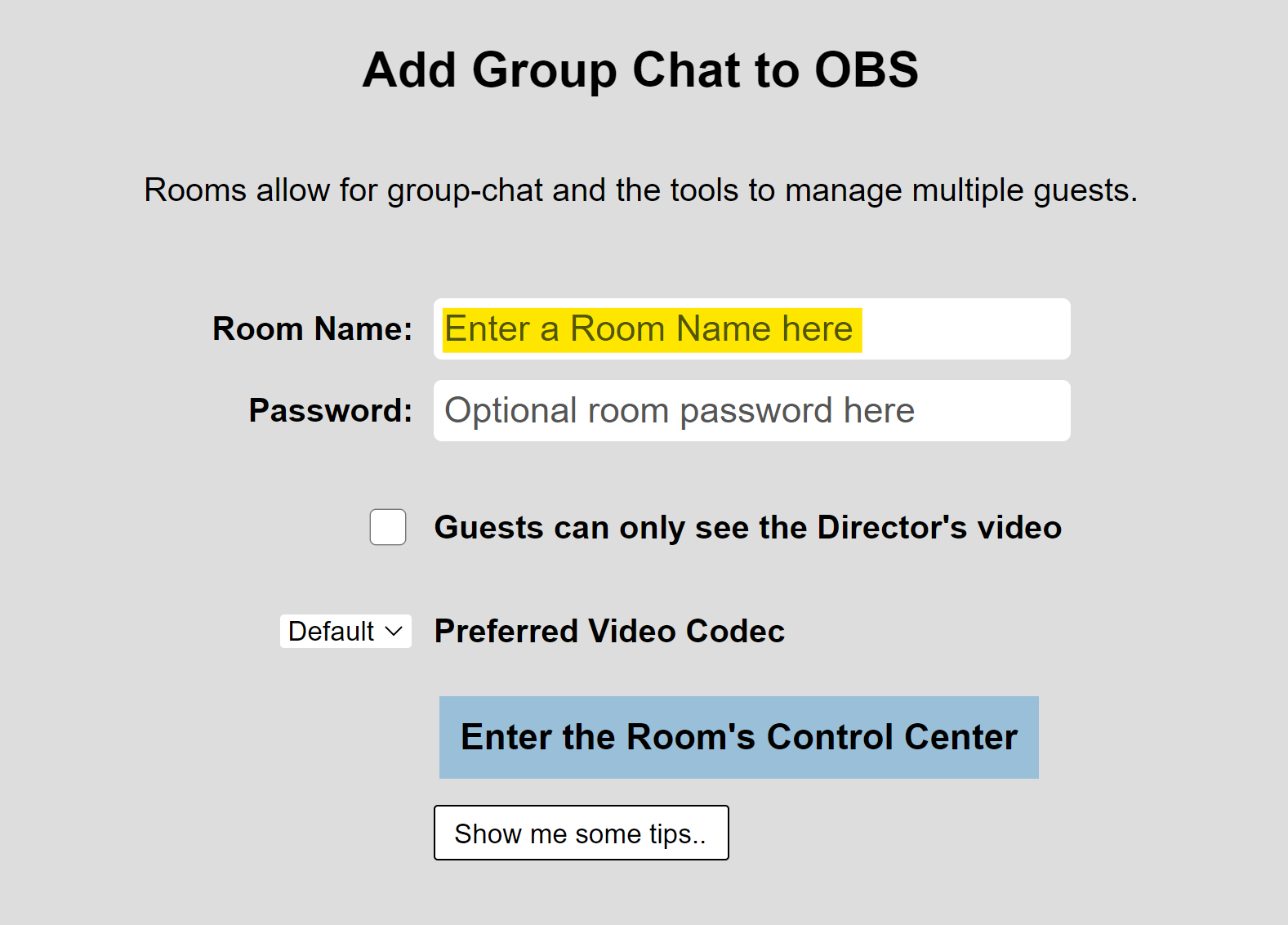
Rooms are the easiest way to have a two-way conversation in VDO.Ninja. When you create a room and share the link, everyone can hear and see each other automatically.
If you want to talk with a remote guest and have them hear you too, use a room! The basic push/view links are one-way only.
Why Use Rooms?
- Two-way audio and video - Everyone in the room can hear and see each other
- Simple setup - Just create a room and share one link
- No custom links needed - Unlike manual push/view setups, everyone uses the same room link
- Built-in echo cancellation - Audio works properly without feedback
Creating a Room
- Visit VDO.Ninja in your browser
- Click Create a Room

- Enter a room name (or leave it blank for a random name)
- Click Enter the Room’s Control Center
Inviting Guests
Once in your room, you’ll see an Invite a Guest link. Copy this link and send it to anyone you want to join.
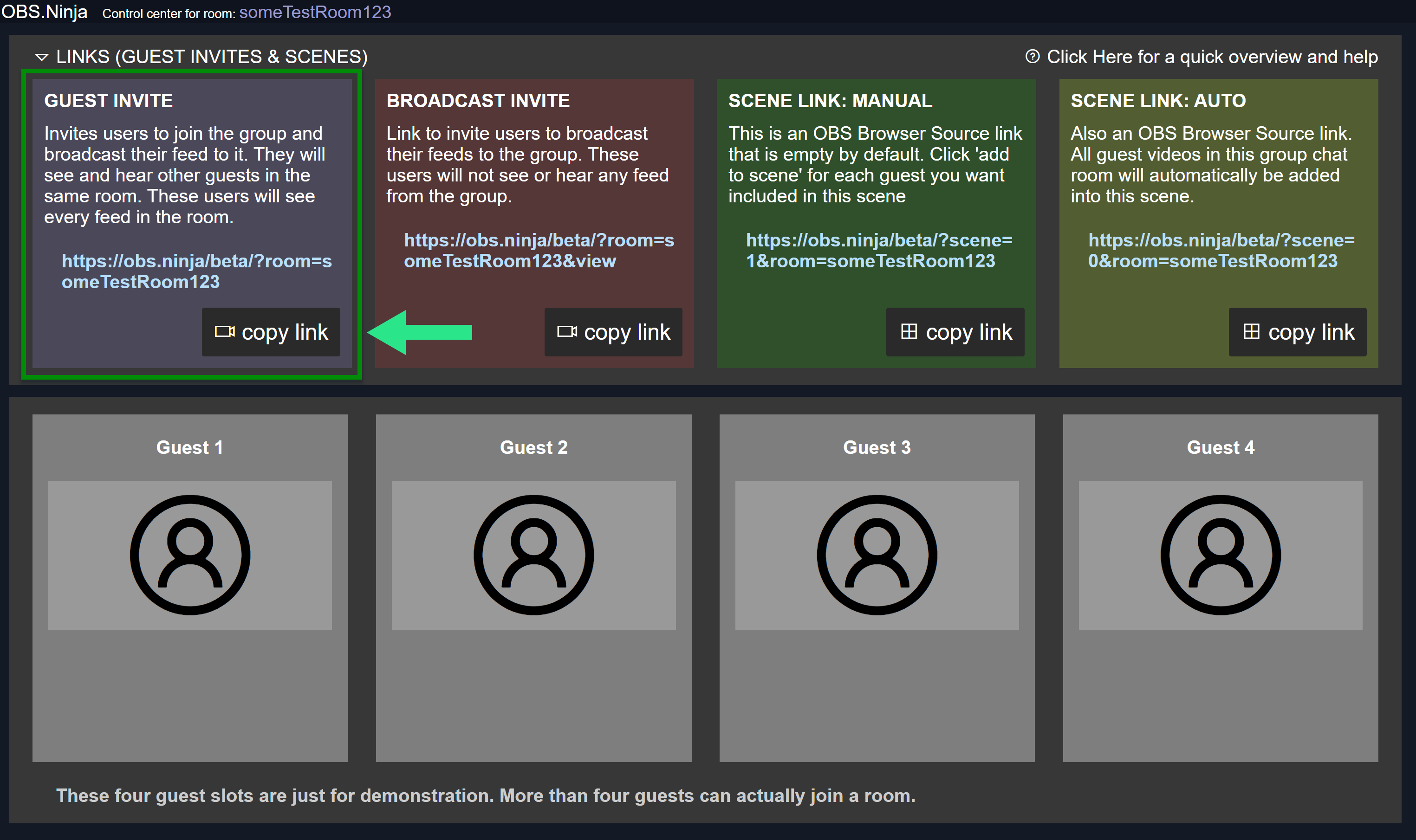
When your guest opens the link:
- They’ll select their camera and microphone
- They’ll join the room and see/hear you
- You’ll see/hear them
That’s it! Both of you can now have a two-way conversation.
Adding Room Video to OBS
To capture the room video in OBS or other streaming software:
- In the room control center, find the Add to Scene button for each guest
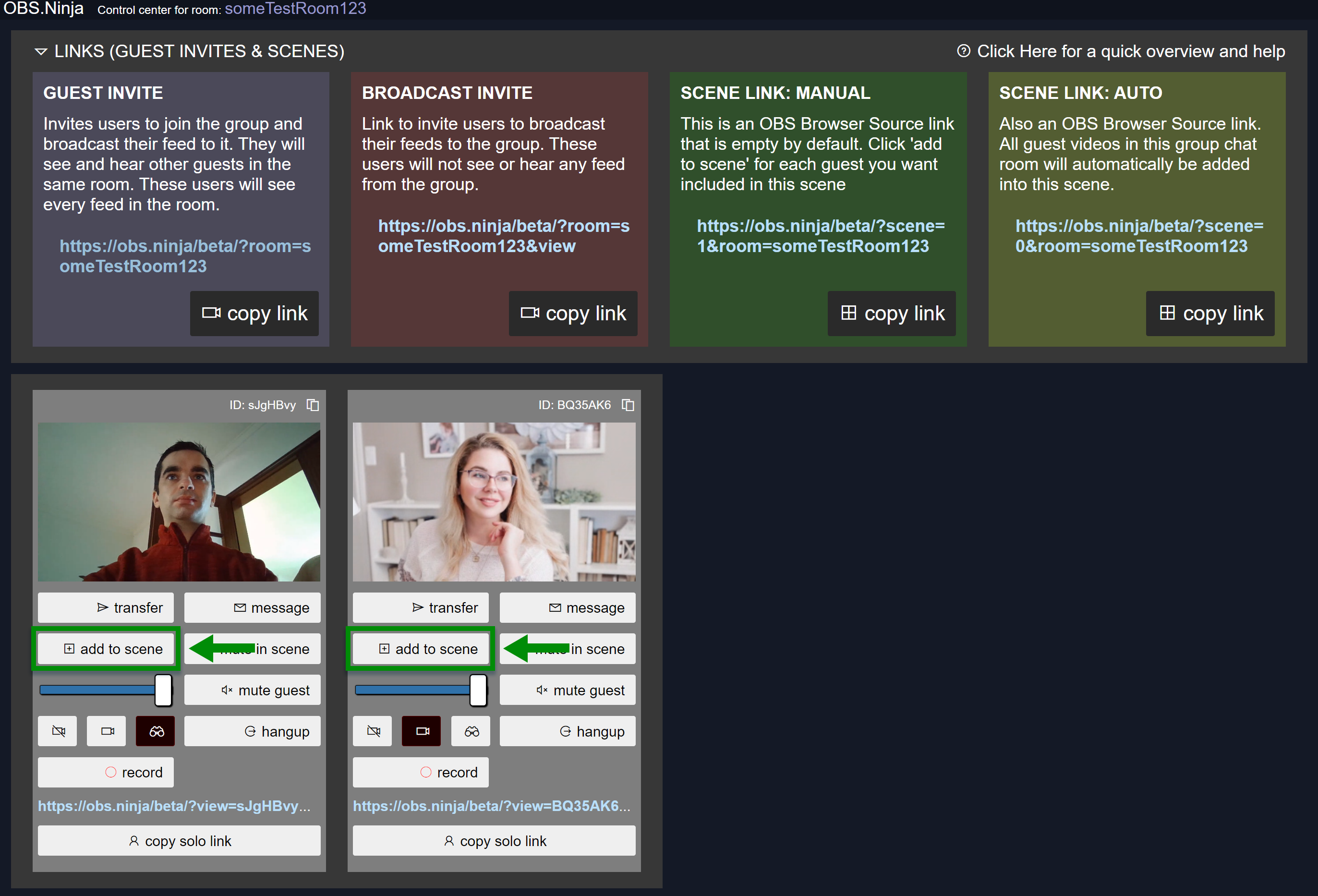
- Copy the scene link that appears
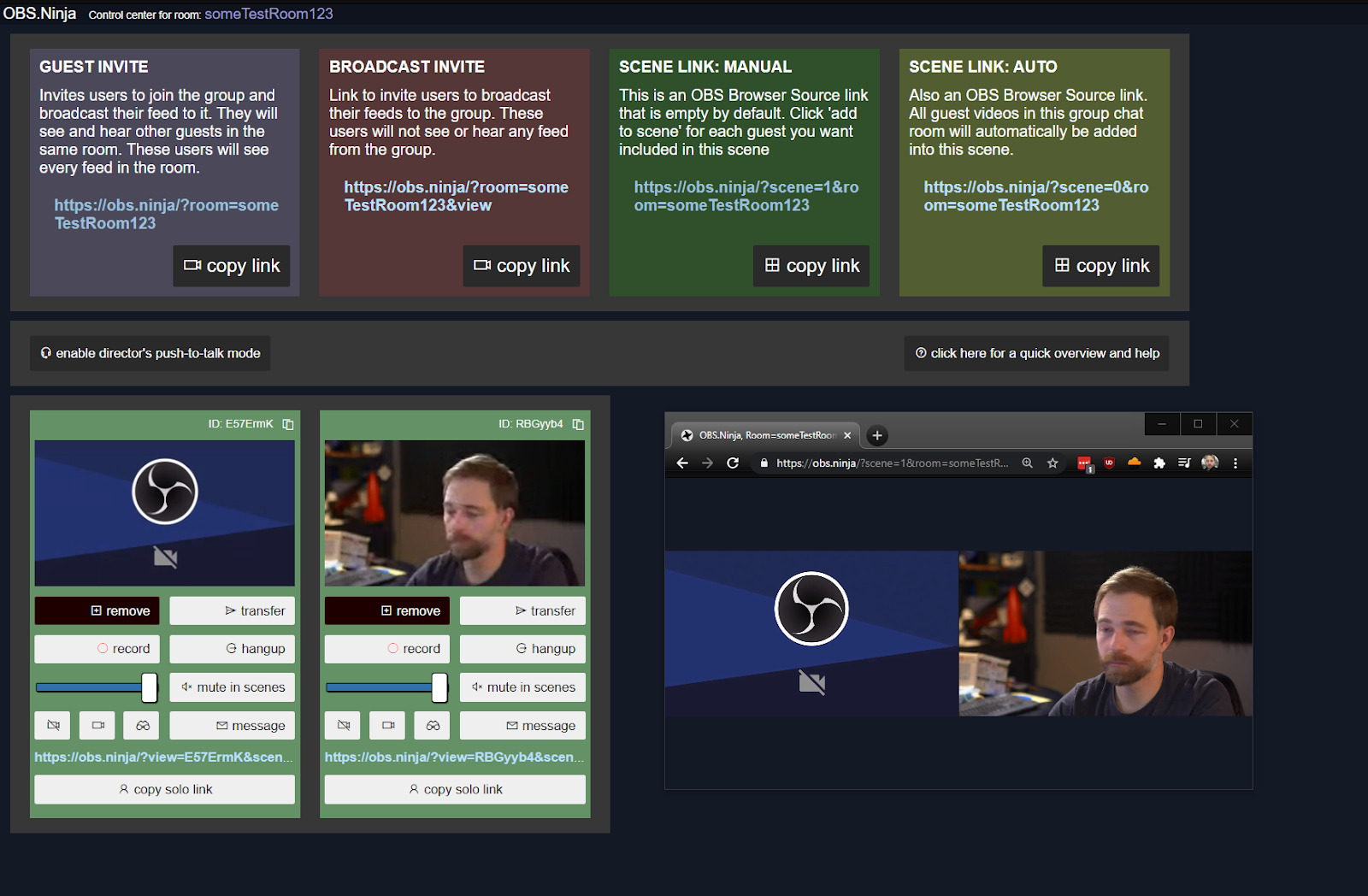
- In OBS, add a Browser Source and paste the link
Quick Room Links
You can also join a room directly using a simple URL format:
https://vdo.ninja/myroom- Join a room called “myroom”https://vdo.ninja/?room=myroom- Same thing, different format
Share this link with others and everyone who opens it will be in the same room, able to see and hear each other.
Next Steps
- Learn about manual two-person chat for advanced control over individual streams
- Explore the full documentation for room settings and parameters